
Google Docs does not have a single fixed “smallest font” in the same way that a physical typewriter has a minimum setting. In most versions of Google Docs, you can enter very small font sizes manually, even when those sizes are not shown in the standard font-size menu. For many users, 1 point is the smallest practical font size they can enter, although extremely small text may be difficult to read and may not display consistently when printed or viewed on different screens. This guide explains the smallest font size available in Google Docs, how to apply it, why someone might use it, and what problems can occur. You will also learn how to choose a readable size, reduce document length without making text unusable, and adjust margins, spacing, and formatting more effectively.
What Is The Smallest Font Size In Google Docs?
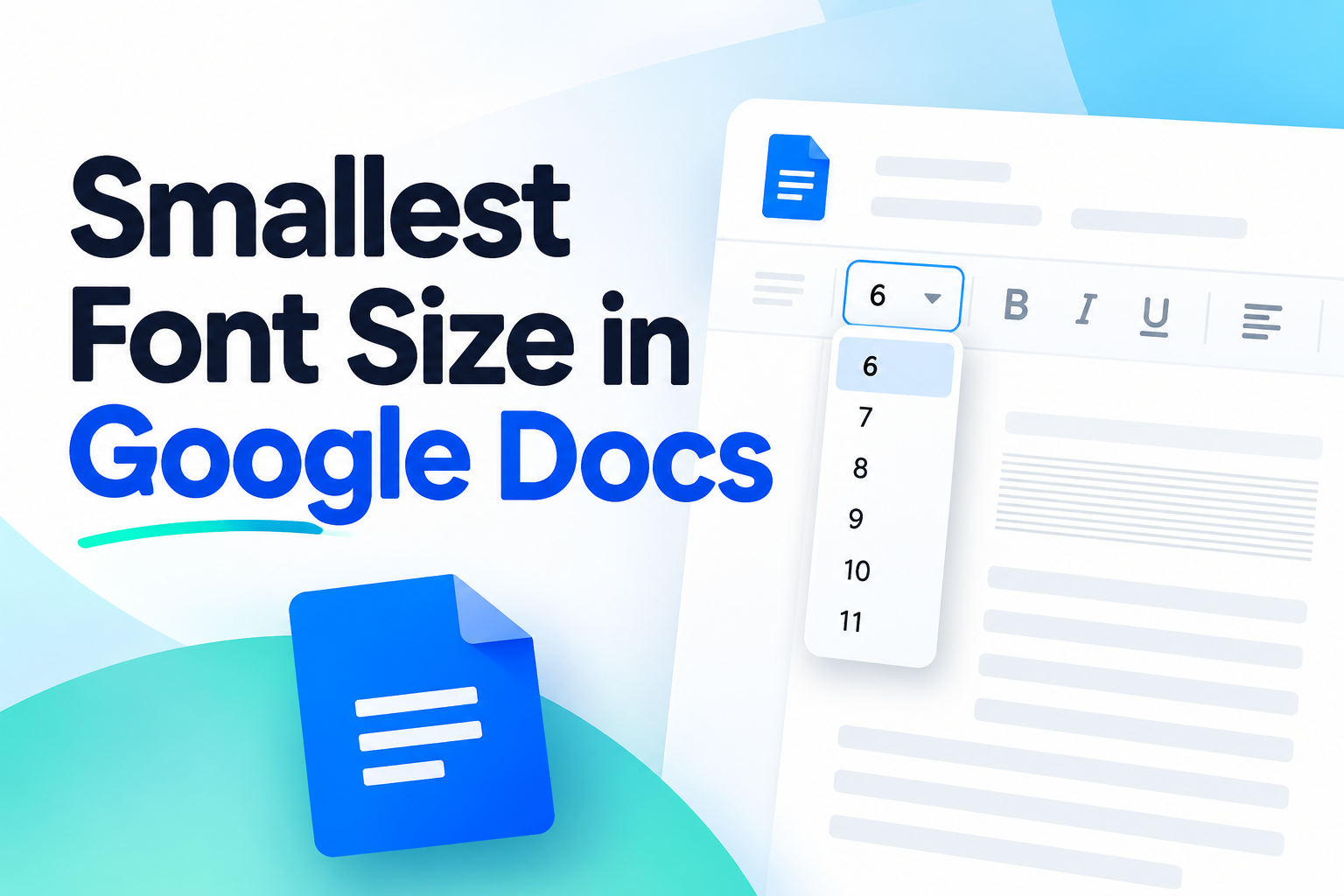
Google Docs commonly displays font sizes beginning at 6 points in the font-size menu, but the menu is not necessarily limited to those listed values. You can usually select the font-size box, delete the existing number, type a smaller value such as 5, 4, 3, 2, or 1, and press Enter. This allows you to use a font size smaller than the options shown in the drop-down list.
The smallest commonly accepted value is 1 point. However, the exact behavior can depend on the browser, device, font, document format, and whether the document is being edited, printed, downloaded, or converted. A 1-point font is technically possible in many situations, but it is rarely suitable for normal reading.
The word “smallest” can mean two different things. It may refer to the smallest number Google Docs accepts in the font-size field, or it may refer to the smallest size that remains readable. Those are not the same. A font can be reduced to 1 point, but that does not mean readers can comfortably see it.
How To Make Font Smaller In Google Docs
Google Docs gives you several ways to reduce text size. The simplest approach is to highlight the text and change the font size from the toolbar. If the desired value does not appear, you can type it manually.
1. Select The Text
Highlight the words, paragraph, or entire document that you want to resize. To select everything in the document, use the standard select-all shortcut for your device. Selecting the text first is important because changing the font-size box without selecting text may affect only new text or the current insertion point.
2. Open The Font Size Box
Find the font-size field in the toolbar. It usually displays a number such as 10, 11, or 12. Click inside the field rather than relying only on the visible drop-down choices. The field allows you to enter a custom number directly.
3. Enter A Smaller Number
Delete the current value and type the size you want to test. For example, you might enter 8 for compact but readable text, 6 for very small notes, or 4 for specialized formatting. Press Enter to apply the change. If the value is accepted, the selected text will immediately become smaller.
4. Test One Point
If you need the smallest possible text, enter 1 in the font-size field. The result may look extremely faint or nearly invisible at normal zoom. Use the document zoom control to inspect it, but remember that zooming in does not make the printed text larger.
5. Check The Whole Document
After changing the size, inspect headings, tables, footnotes, page breaks, and special characters. Small text can change line wrapping and cause content to shift. A document that looks acceptable in the editor may still be difficult to read when printed or exported.
Why People Use Very Small Fonts
Very small fonts are not always used for the same reason. Some people want to fit a document onto fewer pages, while others are creating labels, compact notes, or design elements. Knowing the intended purpose helps determine whether a tiny font is appropriate.
1. Fitting More Content On A Page
Students and professionals sometimes reduce font size to fit notes, summaries, or reference material onto a limited number of pages. This can help with quick-reference sheets, but it may hurt readability. Reducing margins or removing unnecessary wording can often achieve the same result more effectively.
2. Creating Compact Reference Notes
A small font can be useful for private notes, revision sheets, technical references, or short reminders. If the document is meant only for the creator, a smaller size may be acceptable. Even then, the text should remain readable without excessive zooming or eye strain.
3. Designing Labels And Small Cards
Some users create small labels, tags, name cards, or packaging inserts in Google Docs. These formats may require compact text, especially when the available space is limited. A size between 6 and 9 points is often more practical than 1 or 2 points.
4. Adding Fine Print
Terms, disclaimers, captions, and supporting details may sometimes use a smaller font than the main content. However, fine print should never be made so small that readers cannot reasonably access it. Important information should remain visible and understandable.
5. Reducing Page Count
A smaller font can reduce the number of pages in a document, but it is only one of several options. Line spacing, paragraph spacing, margins, image size, and unnecessary blank lines can all affect page length. Adjusting these elements together usually creates a better result.
6. Creating Visual Contrast
Designers sometimes use smaller text to distinguish captions, labels, or secondary information from the primary message. This works best when the size difference is moderate. If the secondary text becomes too small, readers may ignore it or struggle to interpret it.
What Font Size Is Best For Reading?
The best font size depends on the font family, audience, screen, viewing distance, and document purpose. A 12-point font is a common choice for school assignments and formal documents, while 10 or 11 points may be suitable for business writing. Online documents may need larger text because readers use different screens and display settings.
A font size of 8 or 9 points can be readable for captions, tables, labels, and compact notes when the font is clear and the contrast is strong. Sizes below 7 points often become uncomfortable for many readers, especially when printed. People with visual impairments, older readers, and anyone using a small screen may need larger text.
Readability is not determined by font size alone. Letter shape, line spacing, color contrast, text weight, and paragraph width also matter. A clean 10-point font with generous spacing can be easier to read than a crowded 12-point font surrounded by poor formatting.
Smallest Font Versus Smallest Readable Font
The smallest font accepted by Google Docs is a technical setting. The smallest readable font is a practical decision based on real people and real conditions. These two ideas should not be confused when preparing documents for school, work, customers, or public distribution.
1. Technical Minimum
The technical minimum is the smallest value you can enter into the font-size field. In many cases, users can enter 1 point even if it does not appear in the standard menu. This setting may produce text that is visible only when zoomed in and can become difficult to handle in other formats.
2. Visual Minimum
The visual minimum is the smallest size that can be read comfortably at normal viewing distance. It varies by font and reader, but many documents should stay at 9 points or larger for secondary information. Main body text is usually more comfortable at 10, 11, or 12 points.
3. Printing Minimum
Printed text often appears less forgiving than text on a screen. Ink spread, paper quality, printer resolution, and lighting can make very small characters blur together. Text that appears acceptable on a monitor may become unreadable on paper, particularly at sizes below 6 points.
4. Accessibility Minimum
Accessibility requires considering readers with limited vision, reading difficulties, or display magnification needs. Tiny fonts can exclude readers even when the content itself is useful. Documents intended for broad audiences should prioritize adjustable, clear, and comfortably sized text.
5. Layout Minimum
Sometimes the smallest acceptable font depends on the design. A small label may require compact text, while a report should allow comfortable reading. Before reducing the font, decide whether the document is primarily a reading experience, a visual layout, or a compact reference tool.
6. Audience Minimum
A private note can use a different size from a public handout. If readers will print the document, share it, or read it on phones, use a larger size. The more varied the audience, the more important it becomes to choose a safe and readable font size.
How To Fit More Text Without Using A Tiny Font
Reducing font size is often the quickest solution, but it is not always the best solution. Several other adjustments can help you fit content into fewer pages while preserving readability.
1. Remove Repeated Wording
Review the document for repeated explanations, unnecessary introductions, and phrases that do not add meaning. Clear editing can reduce length without affecting the reader’s experience. Shorter writing is usually better than forcing a long document into a smaller type size.
2. Adjust Line Spacing
Excessive line spacing can add several pages to a document. Use a reasonable spacing setting and check the space before and after paragraphs. Avoid removing all spacing if it makes the document appear crowded.
3. Reduce Paragraph Spacing
Many documents contain extra space after every paragraph, especially when text has been pasted from another source. Select the document and review custom spacing options. Small reductions can save space while keeping the text easy to follow.
4. Check Page Margins
Large margins reduce the usable writing area. If the document has no required margin rules, modestly reducing the margins may help. For academic, legal, or professional documents, follow the required formatting standards before making changes.
5. Resize Images And Tables
Large images, oversized table cells, and unnecessary blank rows can create wasted space. Resize visual elements carefully and remove empty areas where possible. Make sure tables remain understandable after adjustment.
6. Use Clear Headings
Organized headings help readers scan content and can reduce the need for long transitional sentences. A well-structured document often feels shorter because readers can find information quickly, even when the total word count remains the same.
7. Choose An Efficient Font
Some fonts take up more horizontal space than others. A clean, compact font may allow more words per line without becoming difficult to read. Do not choose a font solely because it is narrow; letter clarity should remain the priority.
Common Mistakes When Using Very Small Fonts
Using the smallest font in Google Docs can create problems if the goal is readability, printing, or professional presentation. Avoiding these mistakes will help you make better formatting decisions.
1. Assuming Smaller Always Looks Better
A smaller font does not automatically make a document look more professional. It may create uneven pages, crowded paragraphs, and visual fatigue. Good formatting balances available space with readability, hierarchy, and consistent alignment.
2. Ignoring The Reader
The creator may be comfortable zooming in, but the audience may not want to do so. Always consider who will read the document and where they will read it. A font that works for personal notes may be unsuitable for a shared report.
3. Checking Only The Screen
On-screen text can look sharper and more flexible than printed text. Always preview or print a sample when the document will be distributed physically. This is especially important for labels, footnotes, forms, and small tables.
4. Reducing Everything At Once
Applying a tiny font to the entire document can destroy the visual hierarchy. Headings, body text, captions, and notes should not all have the same size. Use smaller text selectively and maintain clear differences between content levels.
5. Forgetting Mobile Devices
A document that looks acceptable on a large monitor may be difficult to read on a phone. Mobile readers often view pages at reduced scale, making tiny text even harder to interpret. Consider how the document will appear across different devices.
6. Using Tiny Text To Hide Content
Very small text should not be used to hide important information, qualifications, or conditions. Readers should be able to locate and read all meaningful content. Transparency and accessibility are more important than saving a few lines or pages.
Best Practices For Google Docs Font Size
A few practical habits can help you choose the right size without wasting time experimenting with extreme settings.
1. Start With Readability
Begin with a normal body size, such as 10, 11, or 12 points. Reduce it gradually only if there is a clear layout reason. Starting too small makes it harder to judge whether the final document remains comfortable to read.
2. Change Only What Needs Changing
If a table caption is too large, reduce the caption rather than shrinking the entire document. Targeted formatting preserves the document’s hierarchy and keeps the main content accessible.
3. Preview Before Sharing
Use print preview or review the document at normal zoom before sending it to others. Look for clipped text, crowded lines, awkward page breaks, and sections that appear too faint or small.
4. Keep Important Text Larger
Instructions, warnings, names, dates, and key conclusions should not be placed in extremely small type. Readers should identify important information quickly, even when scanning the document.
5. Use Strong Contrast
Dark text on a light background is generally easiest to read. Avoid combining tiny font sizes with light gray text, decorative fonts, or colored backgrounds. Each of these choices can reduce clarity.
6. Test With Another Reader
Ask someone else to read a sample without explaining what you changed. If they need to zoom in, squint, or ask for a larger version, the font is probably too small for the intended audience.
Practical Uses For Small Fonts In Google Docs
Small fonts can be appropriate when used carefully and for a clear purpose. The following examples show situations where compact text may make sense.
1. Study Cheat Sheets
A study sheet may contain definitions, formulas, dates, or vocabulary in a compact layout. A small but readable font can help organize information, but headings and key terms should remain larger so the page can be scanned quickly.
2. Event Name Tags
Name tags often have limited space. Names should remain large enough to read from a short distance, while supporting details such as roles or departments may use a smaller size. The smallest text should never contain essential identification information.
3. Table Notes
Tables may need short explanations below the main data. Notes can be smaller than table headings, provided they remain readable in print. If the notes become too long, rewrite them or move them into a separate section.
4. Product Labels
Small labels may require compact wording because of physical size limitations. Use a clear font, strong contrast, and enough spacing between lines. Test a printed sample before producing multiple copies.
5. Personal Reference Cards
A personal reference card can use smaller text because the reader controls the viewing distance. Even so, extremely tiny text can slow down searching and increase mistakes. Compact organization is often more useful than maximum information density.
6. Document Captions
Captions under charts, diagrams, or screenshots may be slightly smaller than body text. They should still explain the visual clearly and should not be reduced so much that readers skip them.
Frequently Asked Questions
1. What Is The Smallest Font Size In Google Docs?
In many versions of Google Docs, you can manually enter 1 point into the font-size field, even though the visible menu may begin at a larger size. A 1-point font is technically possible but extremely difficult to read. The smallest practical size depends on the font, device, printing method, and audience.
2. Why Can’t I See A One-Point Font In The Menu?
Google Docs shows a selection of common font sizes in its toolbar rather than every possible value. The menu is designed for convenience, not as a complete list of all accepted sizes. Click inside the size field, type the number manually, and press Enter to test a smaller value.
3. Is Six-Point Font Readable?
Six-point font can be readable in certain situations, especially with a clear typeface, strong contrast, and high-quality printing. However, it is small for general reading. It may work for labels, footnotes, or compact tables, but most body text should use a larger size.
4. What Is The Best Font Size For A Google Docs Assignment?
A common choice for assignments is 11- or 12-point text, but the correct size depends on the instructions provided by the teacher, school, or organization. Always follow stated formatting requirements first. If no rules are given, choose a readable font with comfortable spacing and clear headings.
5. Can A Very Small Font Reduce The Number Of Pages?
Yes, reducing font size can shorten a document, but it is not the only option. Adjusting margins, line spacing, paragraph spacing, image size, and unnecessary wording may also reduce page count. These changes often preserve readability better than reducing the font to an extreme size.
6. Why Does Tiny Text Look Different When Printed?
Printing can change how small text appears because of printer resolution, ink spread, paper quality, scaling settings, and font characteristics. Text that looks visible on a screen may blur when printed. Always check print preview and test a physical sample when small text matters.
Conclusion
The smallest font size you can commonly enter in Google Docs is 1 point, although the exact behavior may vary by device, browser, font, and document format. The smallest technical setting is not necessarily the smallest readable setting. For most documents, readable body text is far more important than fitting every word onto fewer pages.
Before using an extremely small font, try editing unnecessary wording, adjusting spacing, resizing images, or changing margins when appropriate. Use compact text only for specific purposes such as labels, captions, private reference notes, or carefully designed tables. A successful Google Docs document should remain clear, accessible, and practical for the people who need to read it.