
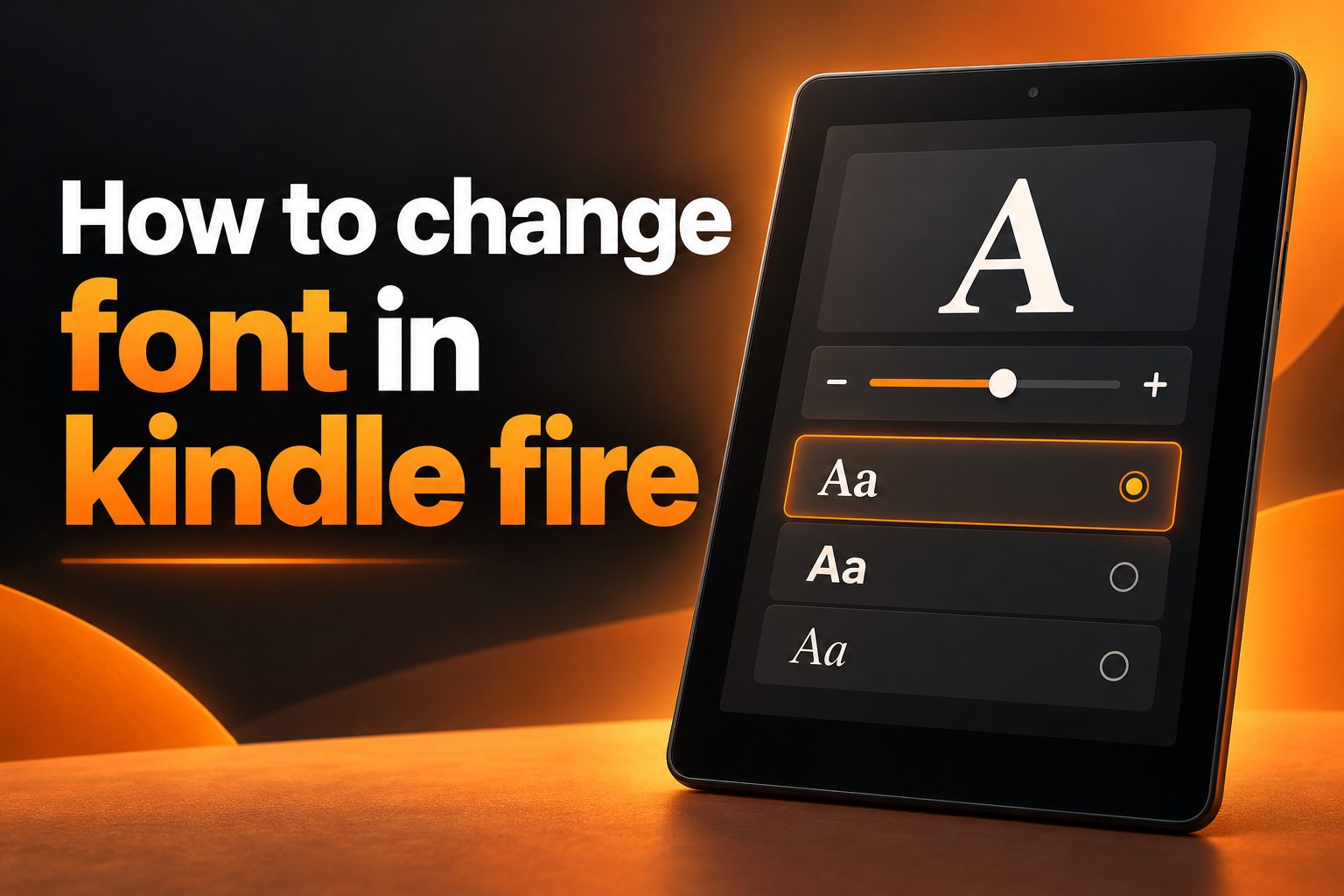
Learning how to change font in Kindle Fire can make reading, browsing, and using apps much more comfortable. Whether the text looks too small, the default typeface feels difficult to read, or you simply prefer a different style, Kindle Fire tablets include several display settings that can help. The exact options may vary slightly depending on your Fire tablet model and Fire OS version, but the basic process is usually simple. In this guide, you will learn how to adjust font size, change the font used in Kindle books, improve webpage readability, and troubleshoot settings that do not appear to work. You will also discover which font choices are best for reading, what accessibility tools can help, and which common mistakes to avoid. By the end, you should be able to personalize your Kindle Fire without installing risky software or changing advanced system settings.
How Font Settings Work On Kindle Fire
Kindle Fire devices use different font controls depending on where you are reading. A Kindle book, a web page, an email, and the tablet interface may not share the same settings. Knowing this distinction prevents confusion when one adjustment changes only a specific type of content.
1. Kindle Book Font Settings
When you read a book through the Kindle app, the reading toolbar usually provides controls for font family, size, line spacing, margins, and page layout. These settings normally affect the current reading experience and may apply to other books depending on the app version and your saved preferences.
2. System Text And Display Settings
The Kindle Fire system itself may offer settings for display size, accessibility, and screen magnification. These controls can make text and interface elements appear larger, but they do not always replace the font used inside every Kindle book or application.
3. Browser Font Controls
Text displayed in the Silk browser is controlled partly by the website and partly by browser settings. Some websites allow text resizing, while others respond better to the tablet’s accessibility options. If browser text remains small after changing a book’s font, that is expected.
4. App-Specific Font Options
Many apps have their own reading or display preferences. An email app, ebook reader, news app, or document viewer may include separate font controls. Changing a Kindle book’s font will not necessarily change the text inside these other applications.
5. Fire OS Differences
Menus can look different on older Kindle Fire tablets, newer Fire HD models, and devices running different Fire OS releases. If a setting is missing, look for nearby terms such as Display, Accessibility, Reading Settings, Text Size, or Aa rather than assuming the feature is unavailable.
6. Device Model Limitations
Some Kindle Fire models offer more reading customization than others. Certain books also use fixed layouts, especially comics, magazines, textbooks, and heavily designed documents. In those cases, font changes may be limited because the page structure is not reflowable.
Why Change The Font On Kindle Fire
Changing the font is more than a cosmetic adjustment. The right typeface and size can reduce eye strain, make long reading sessions easier, and help children, older adults, and users with visual difficulties read more confidently.
1. Improve Reading Comfort
A font that is too small, tightly spaced, or unusually shaped can make reading tiring. Increasing the size and choosing a clean typeface gives your eyes clearer letter forms, which can make novels, articles, and study material easier to follow over longer periods.
2. Reduce Eye Strain
Eye strain often comes from a combination of small text, poor contrast, glare, and long sessions. Font adjustments cannot solve every display problem, but they can reduce the effort needed to recognize words, particularly when the tablet is used in dim or bright surroundings.
3. Support Accessibility Needs
Readers with low vision, dyslexia, or difficulty distinguishing similar letter shapes may benefit from larger text and a simpler font. Kindle Fire accessibility tools can provide additional support when ordinary font-size changes are not enough for comfortable reading.
4. Make Reading More Personal
Some people prefer traditional serif fonts for books, while others find modern sans-serif fonts cleaner. Personal preference matters because reading comfort varies widely. A font that feels elegant to one reader may feel crowded or distracting to another.
5. Improve Focus
A suitable font can make the page feel less cluttered. Adjusting line spacing, margins, and text size along with the typeface may help you focus on the content instead of constantly repositioning the tablet or losing your place.
6. Help Children Read Independently
Children may find larger, clearer letters easier to recognize, especially when practicing reading. A comfortable font size can also reduce frustration and encourage independent use, although parents should still review the available content and screen-time habits.
How To Change Font In A Kindle Book
The most reliable way to change a Kindle book’s font is through the reading toolbar. These steps apply broadly to books opened in the Kindle reading environment, although button names and available typefaces may differ slightly between devices.
- Open The Kindle Book: Start by opening the book you want to read and tap near the center of the page to reveal the reading controls.
- Open The Reading Menu: Look for the Aa button or a similar text-formatting icon. This menu contains the main font and page display options.
- Select The Font Tab: Choose the section labeled Font, Font Family, or a similar term. You may see several built-in typefaces.
- Choose A Typeface: Tap the font that looks clearest to you. If available, compare a serif option with a sans-serif option before deciding.
- Adjust Text Size: Use the plus and minus controls or the size slider to make the letters larger or smaller.
- Review Spacing Options: Adjust line spacing and margins if the page feels crowded. Moderate spacing often improves readability without creating excessive page turns.
- Close The Menu: Tap outside the settings panel to return to the book. Read several pages before deciding whether the changes feel comfortable.
- Repeat If Needed: Reopen the Aa menu whenever you want to fine-tune the appearance. Small changes can make a noticeable difference during long reading sessions.
Adjust Font Size And Page Layout
Font family is only one part of a comfortable reading setup. Size, spacing, margins, and screen orientation work together, so consider the whole page rather than changing only one setting.
1. Choose A Comfortable Text Size
Start with a size that lets you read without leaning toward the screen. Very large text may create frequent page turns, while very small text may cause strain. Read a full page at each setting before choosing the size that feels natural.
2. Increase Line Spacing Carefully
More line spacing can help readers keep their place and separate lines visually. However, excessive spacing can make a page feel disconnected and increase the number of page turns. Use the smallest increase that noticeably improves clarity.
3. Adjust Page Margins
Narrow margins allow more words on each page, but they may make the text feel crowded. Wider margins create more visual breathing room. If your eyes often jump between lines, slightly wider margins may make reading easier.
4. Try Landscape Orientation
Turning the tablet sideways can change the amount of text shown on each line and may feel more comfortable for documents or large-print reading. It is not ideal for everyone, but testing portrait and landscape modes can reveal a better arrangement.
5. Use Bold Text When Available
Some Kindle reading settings include a boldness control. A small increase can make letters more distinct, especially on screens with glare or for readers who find thin strokes difficult to see. Avoid the strongest setting if it makes the page look heavy.
6. Consider Screen Brightness
A readable font can still feel uncomfortable when the screen is too bright or too dim. Match brightness to the room, and remember that glare from windows or overhead lights can make text appear less sharp than it really is.
7. Test With Different Content
A font setting that works well for a novel may not be ideal for poetry, technical material, or scanned documents. Test your preferred layout on several pages and content types before assuming one setting is perfect for everything.
Change Text Size In Kindle Fire Accessibility Settings
If ordinary book controls are not enough, Kindle Fire accessibility settings may provide broader display assistance. These options can affect more of the tablet, but they may also change the appearance of menus and apps.
1. Open The Settings App
Swipe down from the top of the screen and select the settings icon. Depending on your Fire OS version, accessibility options may appear under Accessibility, Device Options, or a similar category related to display and interaction.
2. Look For Display Assistance
Search for settings related to screen magnification, text size, display size, or visual support. The exact wording varies by model. Read the description beside each option so you know whether it affects the whole system or only selected content.
3. Increase Display Size Gradually
Display-size controls may enlarge text, buttons, and other interface elements together. Increase the setting one step at a time. A very large setting can make menus harder to navigate because fewer items fit on the screen.
4. Test Magnification Features
Magnification can help when occasional enlargement is needed instead of permanently large text. Learn the gesture or shortcut required to activate it, and practice turning it off so the screen does not remain zoomed unexpectedly.
5. Review Contrast Options
Some accessibility features improve visibility through contrast or color adjustments rather than font changes. These can help readers distinguish letters from the background, particularly when using the tablet in bright light or with reduced visual clarity.
6. Check App Compatibility
Not every application responds perfectly to system display changes. After enabling an accessibility feature, open the apps you use most and confirm that buttons, menus, and text remain usable. If an app becomes awkward, reduce the setting or use its own preferences.
7. Restart When Settings Seem Stuck
Most display changes take effect immediately, but an app may need to be closed and reopened. If the interface still looks unchanged, restart the tablet and check the setting again before assuming the feature has failed.
Fonts For Different Kindle Fire Reading Needs
The best font depends on what you are reading and who is using the tablet. A thoughtful choice can make the device more useful for leisure, education, work, and accessibility.
1. Novels And General Books
For novels, choose a clear font with comfortable spacing and moderate size. Serif fonts can create a familiar book-like appearance, while simple sans-serif fonts may feel cleaner on a bright tablet screen. The most important factor is sustained comfort.
2. Study Materials
Students often benefit from slightly larger text, generous line spacing, and margins that leave enough visual separation between paragraphs. If the material includes charts or diagrams, avoid settings so large that important page relationships become difficult to follow.
3. Technical Documents
Technical content may include symbols, headings, tables, and code-like text. Use a readable size without excessive boldness, and check whether the document supports reflow. Fixed-layout files may not respond to normal font controls.
4. Reading At Night
At night, reduce glare and use a comfortable brightness level in addition to changing the font. A warm display mode, when available, may feel gentler for some readers, although individual comfort and room lighting should guide the final choice.
5. Reading With Low Vision
Readers with low vision may need a combination of larger text, boldness, higher contrast, and magnification. Make one change at a time so you can identify what helps. Consider also increasing the viewing distance only if the text remains clear.
6. Reading With Dyslexia
Some readers with dyslexia prefer simple letter shapes, wider spacing, and shorter lines. There is no universal dyslexia-friendly font setting, so experiment with the available options and focus on reducing crowding, visual movement, and unnecessary decoration.
7. Shared Family Tablets
If several people use the same Kindle Fire, remember that one person’s ideal settings may not suit another. Teach each user how to open the reading menu and restore preferred options, especially when children and adults share the device.
Common Kindle Fire Font Mistakes To Avoid
Most font problems come from changing the wrong setting or expecting one adjustment to affect every type of content. Avoid these common mistakes to save time and preserve a comfortable reading experience.
1. Changing The System Instead Of The Book
Some readers change display settings when they really need the Kindle reading menu. If the problem is limited to one ebook, open the book’s Aa controls first. System-wide changes may enlarge menus without improving the book’s actual font.
2. Making Text Too Large
Large text can help visibility, but extreme settings may create constant page turns and disrupt the flow of reading. Increase the size gradually and evaluate a complete page. The best setting is usually the smallest one that feels clearly comfortable.
3. Expecting Fixed Layout Books To Reflow
Comics, magazines, picture books, and some textbooks are designed as fixed pages. Their text may not respond to normal font controls because changing the typeface would break the layout. Use zoom or orientation controls when available instead.
4. Ignoring Brightness And Glare
Readers sometimes keep increasing font size when the real problem is screen glare. Before making text unusually large, adjust the tablet’s brightness and position. Moving away from a bright window can improve clarity immediately.
5. Installing Unverified Font Apps
Third-party apps that promise system-wide font replacement may request unnecessary permissions or work poorly with Fire OS. For most readers, built-in Kindle and accessibility settings are safer, simpler, and sufficient for improving readability.
6. Forgetting To Test Multiple Pages
A setting can look attractive on one page but become tiring over a long chapter. Always read several pages, including paragraphs with dialogue, headings, and long lines. This gives you a better sense of whether the layout truly works.
Best Practices For Kindle Fire Font Changes
A few practical habits make font customization easier and help prevent settings from becoming uncomfortable or difficult to reverse.
1. Begin With Small Adjustments
Change one control at a time rather than moving every slider immediately. Small adjustments make it easier to identify which setting improves readability. They also prevent an overly large layout that hides useful content or creates unnecessary page turns.
2. Match Settings To The Environment
Your ideal font size may change depending on lighting, distance, and reading position. Use slightly larger text in dim conditions or when the tablet is farther away, and review brightness before assuming the font itself is the problem.
3. Keep A Personal Baseline
Once you find a comfortable combination, remember the approximate font size, spacing, and brightness. This makes it easier to restore your preferences after another family member changes the tablet or after a software update modifies the layout.
4. Use Built-In Controls First
Built-in options are designed to work with the device and are less likely to cause compatibility problems. Explore the Kindle reading menu, display settings, and accessibility features before searching for unofficial solutions.
5. Check For Software Updates
Updates can improve menu behavior, accessibility support, and reading performance. If a setting is missing or behaves strangely, confirm that the tablet is running a supported software version, then check whether the menu wording has changed.
6. Protect Reading Comfort
Font customization should make reading easier, not encourage longer sessions without breaks. Follow the twenty-twenty-twenty habit when appropriate by looking away periodically, keeping the screen at a comfortable distance, and stopping when your eyes feel tired.
Practical Kindle Fire Font Use Cases
Different readers may use the same font controls for very different reasons. These examples show how a few adjustments can support everyday reading situations.
1. An Older Adult Reading Large Print
An older reader may increase font size, add slight boldness, and widen line spacing. Combining these settings can make letters easier to distinguish without relying entirely on magnification. A moderate brightness level can further improve comfort in a living room.
2. A Student Reviewing A Textbook
A student may prefer medium-sized text with wider margins and spacing that makes notes easier to follow. If the textbook uses a fixed layout, the student may need zoom controls instead of a font change, particularly for diagrams and page references.
3. A Parent Setting Up A Child’s Tablet
A parent can choose a clear, moderately large font and show the child how to reopen the reading menu. This supports independent reading while keeping the layout simple. Parents should also review accessibility and parental-control settings separately.
4. A Commuter Reading In Changing Light
A commuter may need to adjust brightness and text size as the environment changes. Larger text can help when the tablet is held farther away, while a simpler typeface may remain readable when the vehicle moves or the lighting is uneven.
5. A Reader Using A Fixed-Layout Magazine
Magazine pages often do not support ordinary font replacement. The reader may need to zoom, rotate the device, or use a text-view option if the publication provides one. Expecting the standard Kindle font menu to reformat every page can lead to confusion.
6. A Reader With Visual Fatigue
A reader who experiences fatigue may combine a slightly larger font with lower brightness, suitable contrast, and regular breaks. The goal is not simply to enlarge everything, but to create a balanced display that remains comfortable throughout a complete reading session.
Frequently Asked Questions
1. Can I Change The Font On Every Kindle Fire Model?
Most Kindle Fire tablets let you change the font and size inside supported Kindle books, but the exact options depend on the Fire OS version, device model, and book format. Some older devices or fixed-layout publications may offer fewer choices. Look for the Aa reading menu first.
2. Why Did My Font Change Only In One Book?
Font settings may be saved for a specific book, reading app, or content type. In addition, some books use fixed layouts that do not allow normal reflow. If another book looks unchanged, open its reading controls and check whether it supports font customization.
3. Can I Install A Custom Font On Kindle Fire?
Built-in Kindle Fire settings usually provide a selection of supported fonts rather than unlimited custom font installation. Unofficial font tools may be unreliable or request unnecessary permissions. For most users, choosing among the available reading and accessibility options is the safest approach.
4. How Do I Make Text Larger In The Silk Browser?
Browser text may be adjusted through Silk settings, webpage controls, or the tablet’s accessibility options. Because websites use different layouts, one setting may not work everywhere. Try the browser’s text-size control first, then use display or magnification features if necessary.
5. Why Is The Font Option Missing?
The font option may be unavailable because the content uses a fixed layout, the app has its own controls, or the reading toolbar is hidden. Tap the center of the screen to reveal controls, then look for Aa, Text, Display, or Reading Settings.
6. What Is The Best Font Size For Kindle Fire?
There is no single best size because reading distance, eyesight, lighting, and personal preference differ. Choose the smallest size that remains easy to read without squinting or leaning toward the screen. Then adjust spacing and brightness to complete the setup.
Conclusion
Learning how to change font in Kindle Fire is usually a straightforward process once you know which type of content you are adjusting. For Kindle books, open the reading menu and use the font, size, spacing, margin, and boldness controls. For broader display needs, review the tablet’s accessibility and display settings. Remember that websites, apps, and fixed-layout publications may use separate controls or may not support font replacement at all.
The most comfortable setup comes from making gradual changes and testing them across several pages. Consider font size, typeface, spacing, brightness, contrast, and reading distance together. With the built-in options and a little experimentation, you can create a Kindle Fire reading experience that is clearer, more comfortable, and better suited to your needs.